
THE OMNISCHOOL MOBILE APP · PARENT GUIDE
Your school day.
A few simple steps.
From your first sign-in to the afternoon handover. Find the task you need, then follow along in the OmniSchool app.
Let’s get startedCHOOSE YOUR APP SECTION
Sign-in, school updates and account help are included in both guides.
MOBILE APP GUIDE
Canteen
Manage meals, balances and payments for your children.
START HERE
Connect your school. Then sign in.
You will need the school code or setup QR, plus the account your school has provided.
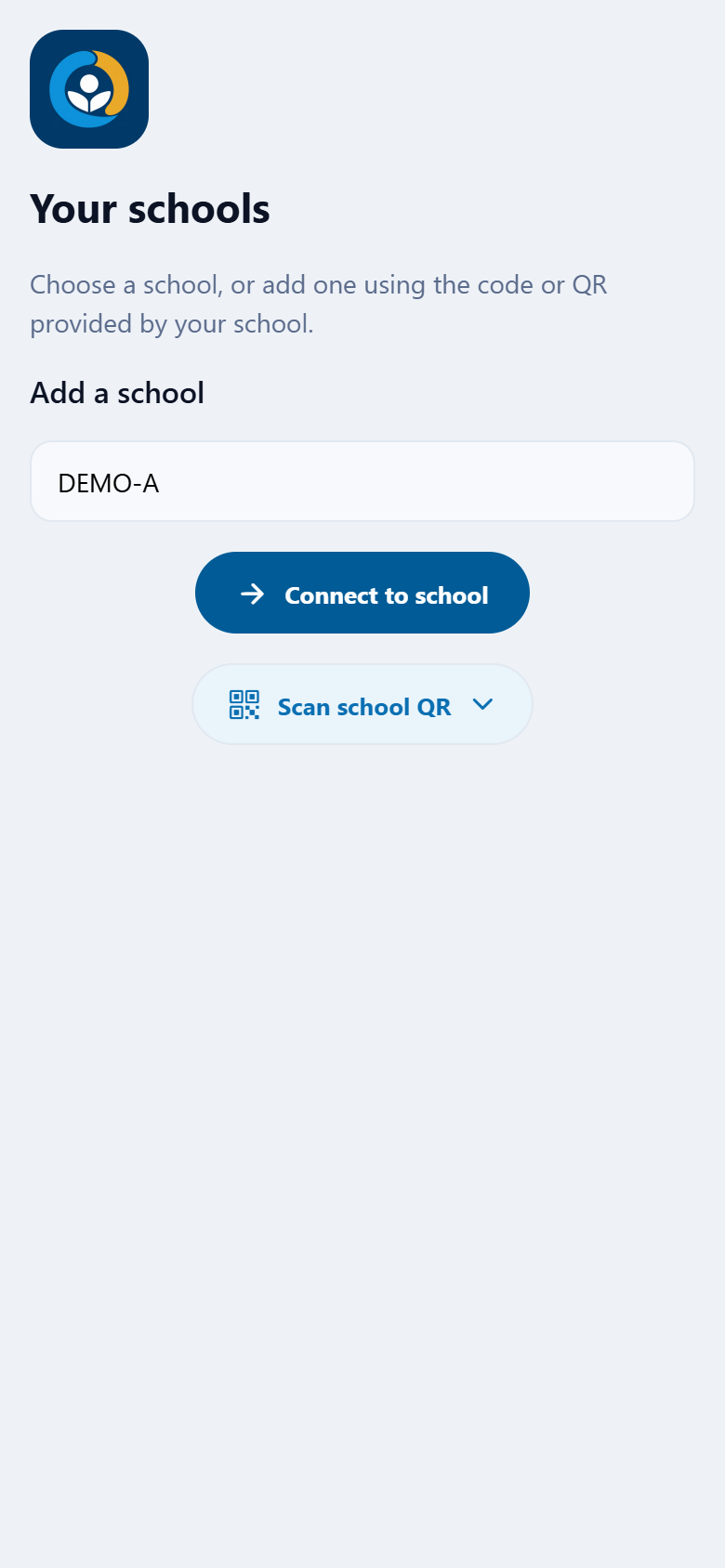
Open OmniSchool. On Your schools, enter the code provided by your school and tap Connect to school. You can also use the school QR option and allow camera access when prompted.
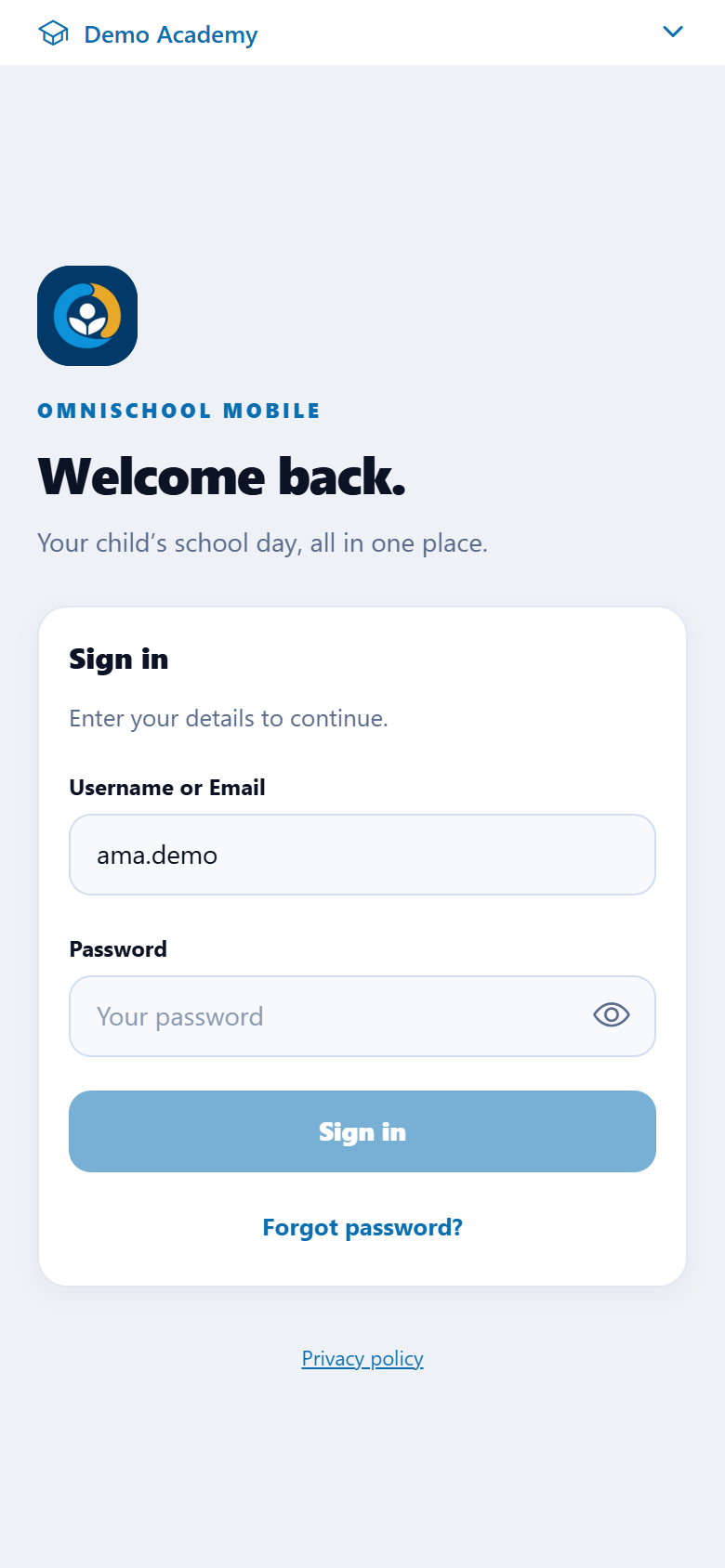
Check the school you have connected to. Enter your username or email and password, then tap Sign in.
If asked, change your temporary password before continuing. Use Forgot password? if you need a reset link. Contact your school if you do not have an account or cannot receive the reset email.
CANTEEN
See your children and balances.
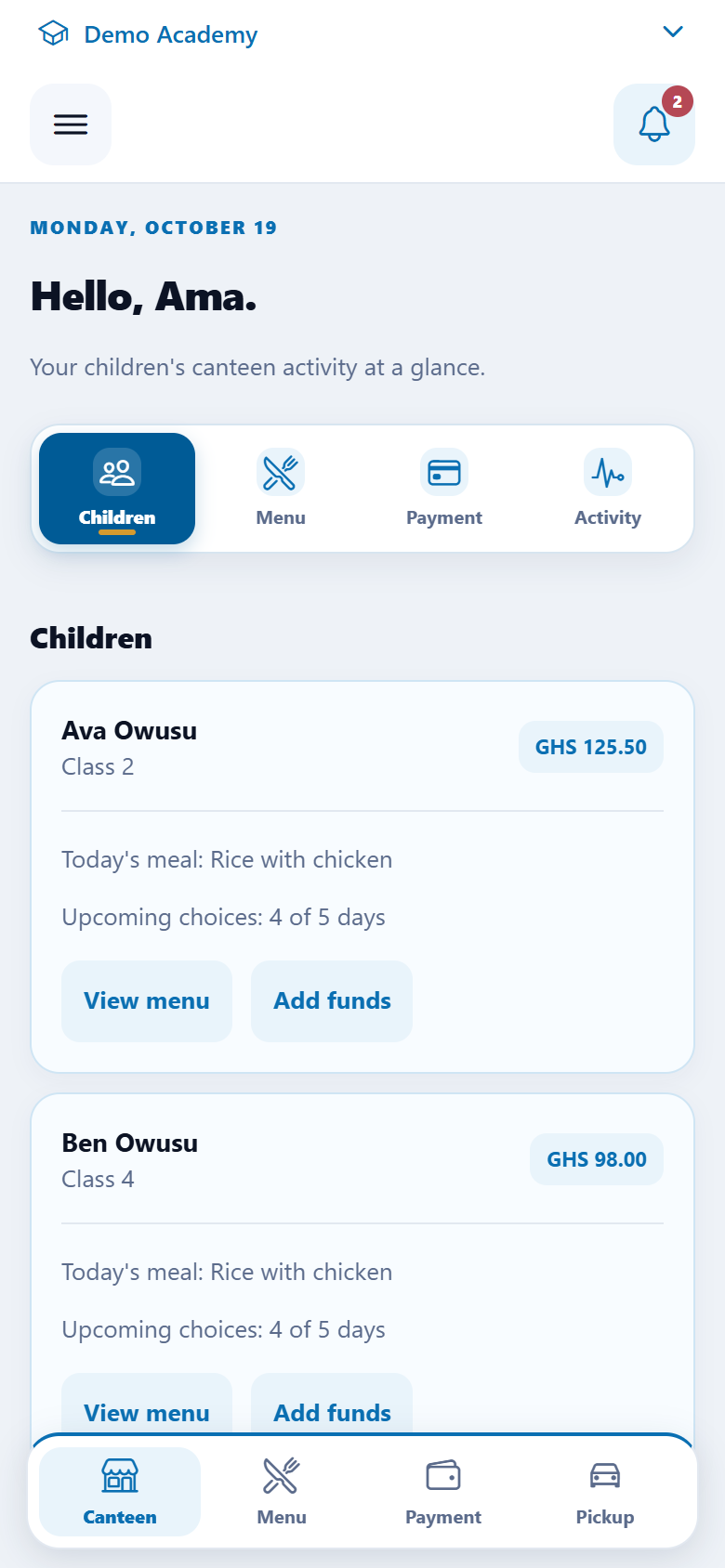
The Canteen dashboard brings your linked children and their account information together.
Open Canteen and view the dashboard. Check each child’s name, class and available balance.
Review the meal information and recent activity shown for your account. Refresh the screen when you need an update.
If a child is missing or a record looks incorrect, contact your school. Parents cannot link an arbitrary child themselves.
CANTEEN
Choose meals for the school day.
Set meal choices for the children you manage, using the options your school has made available.
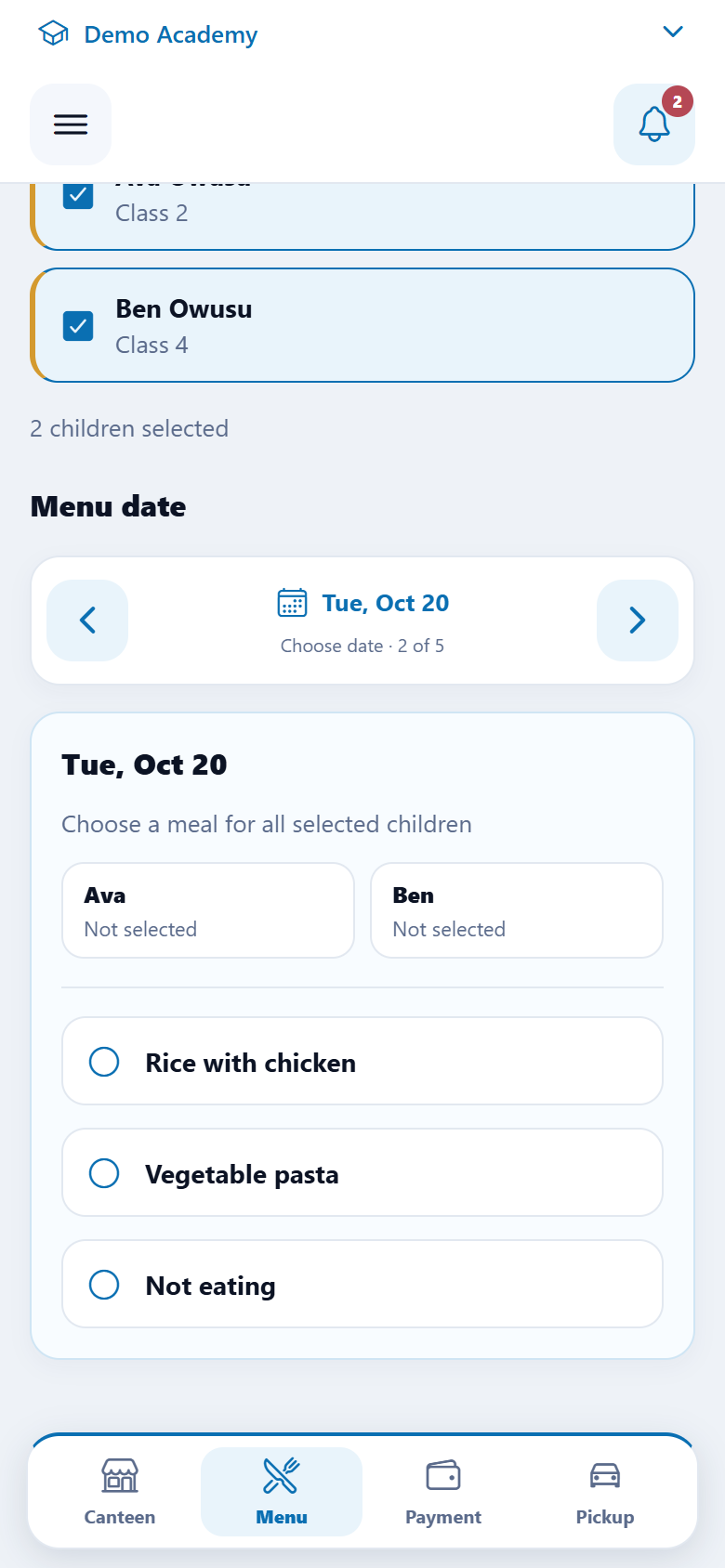
Open Ward menu and choose the children whose meals you want to manage.
Move to the required date. Review the school’s menu and choose the appropriate meal option for the selected children.
Tap the meal option to save it for the selected children, then check the displayed choice. Repeat for other available dates or children as needed.
CANTEEN
Add funds, with the totals clear.
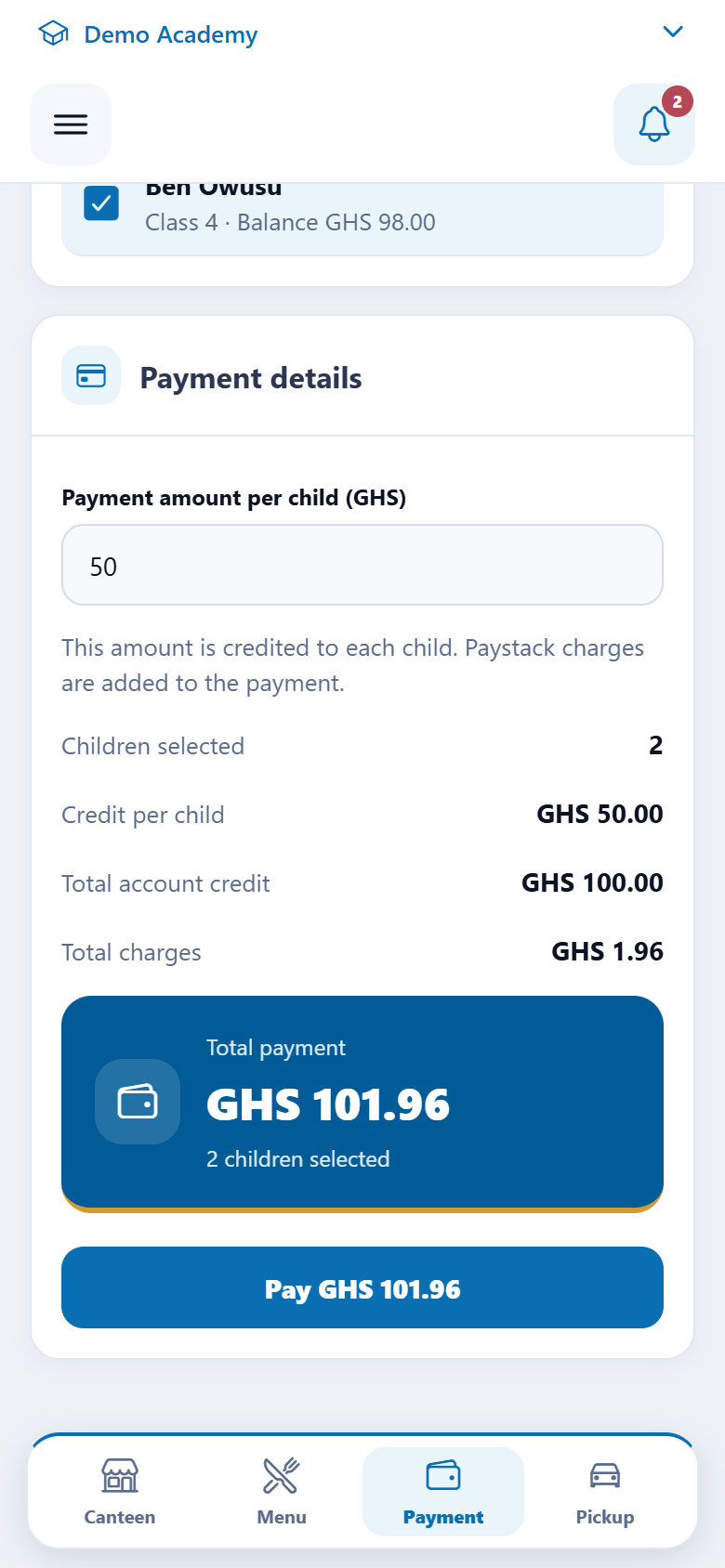
Where online payments are enabled, enter the amount you want credited to each selected child.
Open Payment and select the child or children you want to fund.
Enter the credit amount per child. Review the number of children, total account credit, charges and total payment before tapping Pay.
Complete payment on the school’s payment provider checkout, then return to OmniSchool so the payment can be checked and your balances refreshed.
If you were debited but have not received confirmation, use Check pending payment where shown. Contact the school with the reference if it remains unresolved; check the existing payment before starting another.
STAY CONNECTED
Keep up with school updates.
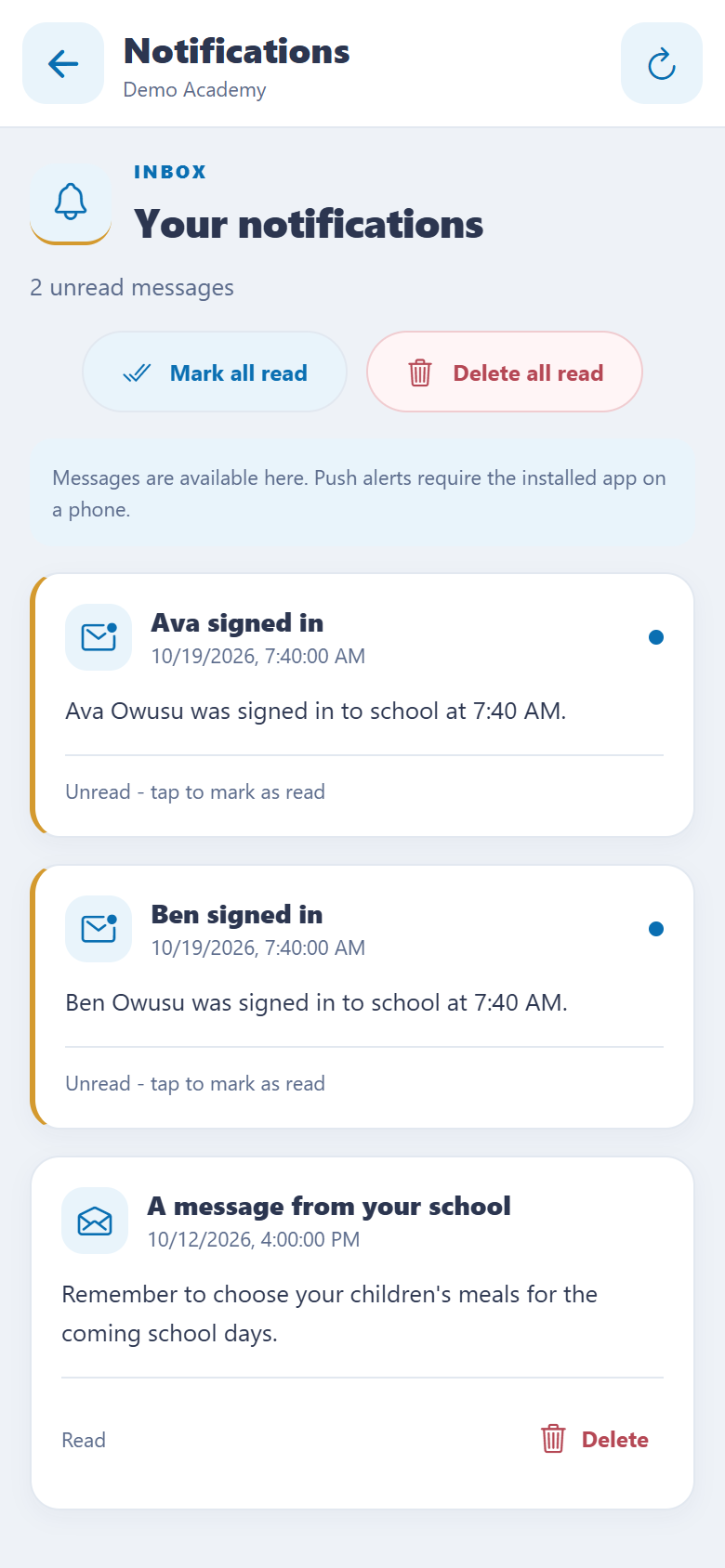
Check the notification inbox for messages available to your account.
Tap the notification bell to open the inbox. Open a message to read the details.
When asked, allow notifications on your device if you want push alerts. You can change that permission later in your phone’s Settings.
If an expected update is missing, refresh the inbox and check with the school. Available alerts depend on the school’s settings and your account.
YOUR ACCOUNT
More than one school? Switch easily.
Keep participating schools in one app and use the appropriate account at each school.
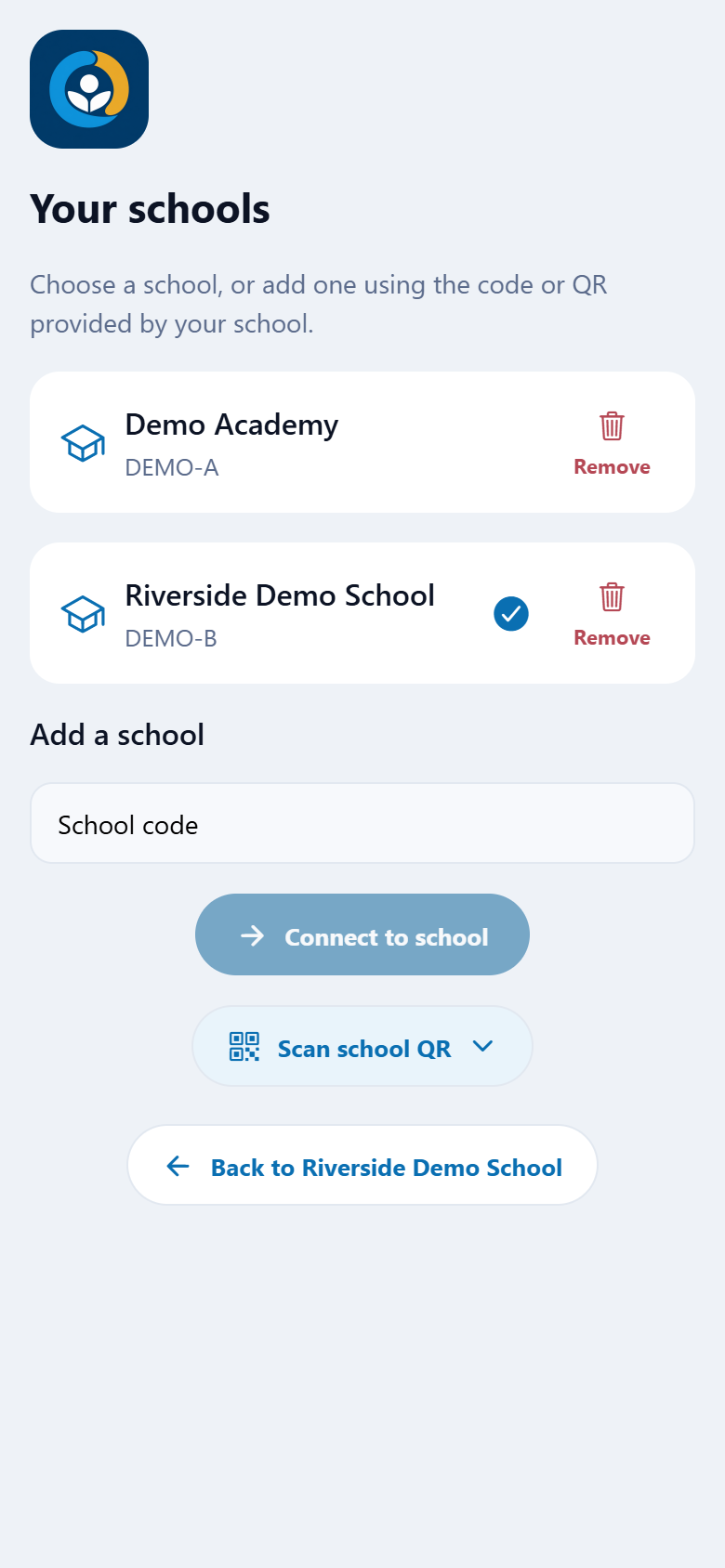
Use Switch school to return to Your schools.
Choose a saved school, or add another with the code or setup QR supplied by that school.
Sign in when asked, using the account provided by the selected school. Check the school name before viewing records or making a payment.
YOUR ACCOUNT
Look after your account.
Keep your account details current and know who to contact when you need help.
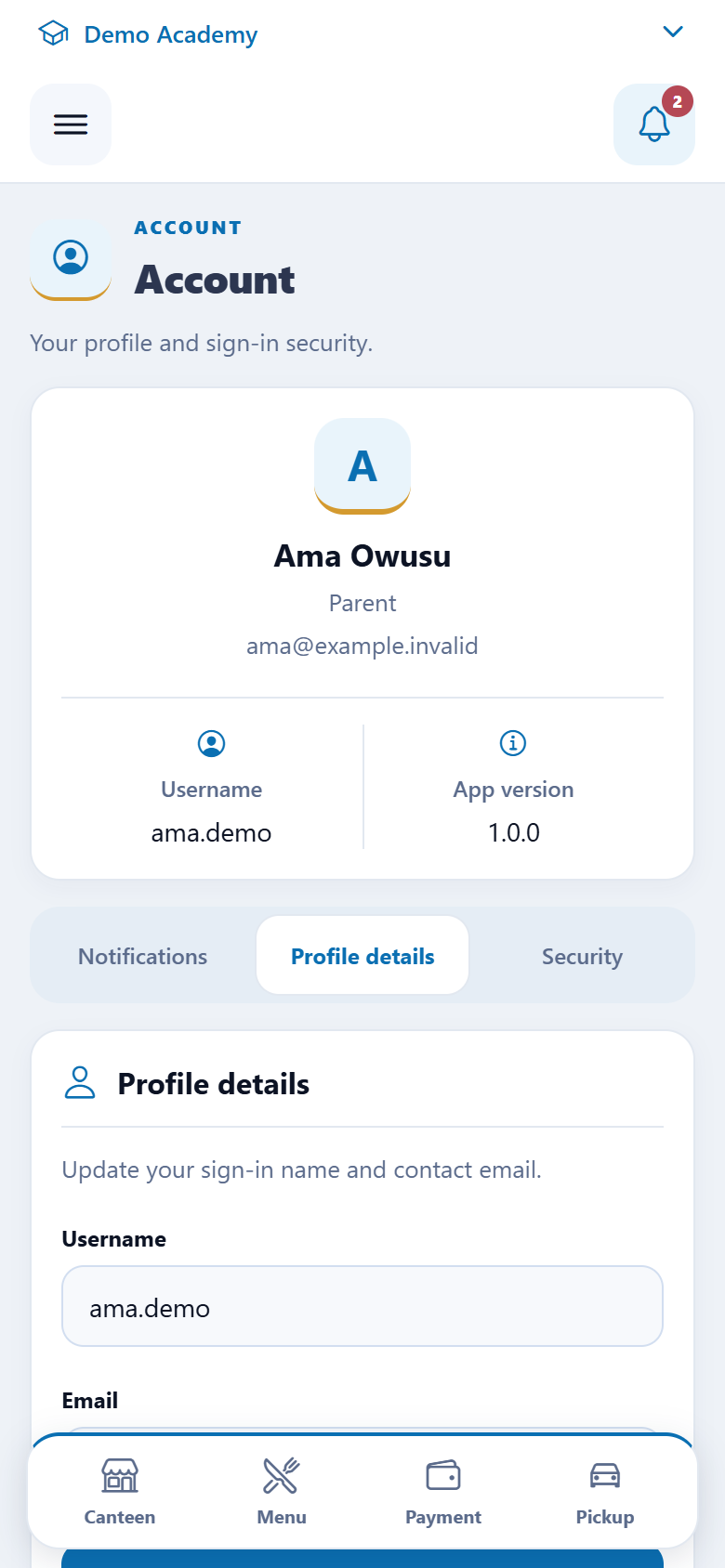
Open Account settings from the navigation menu to view the profile and security options available to you.
Use a strong password and sign out on a shared device. If your session expires, reconnect to the correct school and sign in again.
Contact your school for missing children, incorrect balances, account access or pickup questions. Use the app’s privacy and account-deletion information for data requests.
A LITTLE HELP, WHEN YOU NEED IT
Your school is
your first stop.
For login details, student records, balances or pickup arrangements, contact your school’s office. Give them the selected school name and a clear description of the issue. Never send your password or payment PIN.
I cannot sign in.
Check the selected school and the details supplied by that school. Use Forgot password? for a reset link, or ask the school to check your account and email address.
I cannot see a feature or child.
Schools choose which services to offer and which children your account can manage. Check that you selected the right school, then contact the school to confirm access.
I paid, but the balance has not changed.
Return to OmniSchool and check the pending payment where available. If it is still unresolved, contact the school with the payment reference and time. Do not share payment PINs or authorisation codes.